
LCP, which stands for Largest Contentful Paint, is one of the 3 most important criteria of the Core Web Vitals, an indicator created by Google to determine whether users can enjoy a good experience on a page. In this guide, we will dive into this metric in particular: you will discover what LCP is, how to measure it, and how to optimise it.
What is LCP?
The LCP (Largest Contentful Paint) measurement indicates the render time of the largest block on your site. Generally, the LCP will refer to a large image (or a background image), a large block or even a video.
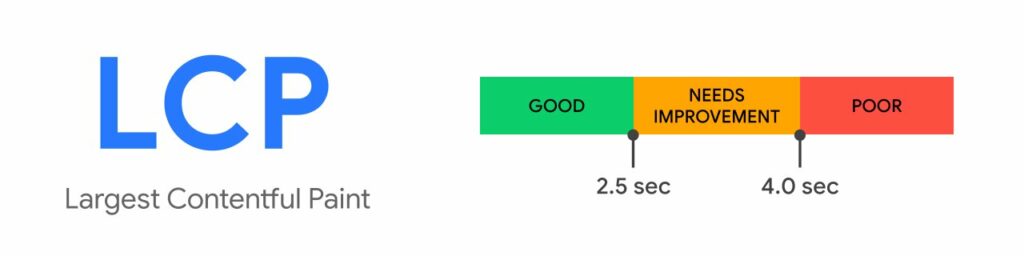
For the score, if the largest content is visible within the first 2.5 seconds of page load it will be considered good (green). However if it exceeds 4 seconds, it will be considered poor (red):
How to measure LCP?
LCP is sometimes difficult to measure. I have already seen a different LCP on every tool, and even a different LCP between Lighthouse on Chrome DevTools and Google PageSpeed Insights even though they both use the Lighthouse tool… Furthermore, if you only optimise the LCP of one element — by reducing its size for example — the LCP will shift to another element. Unless you really have a major problematic block, the ideal would be to optimise to the maximum what we are about to cover, rather than a specific element identified by the tool you are using.
The ideal will always be to use the Google Search Console to determine the LCP if you wish, but it is likely that you will not have access if you are working for a client, or that Google has not collected enough data to provide figures.
The 4 best tools to measure LCP
Here are what I consider the best tools for measuring LCP — feel free to use all of them:
- Google Page Speed Insights
- Chrome Dev Tools → Lighthouse
- webpagetest.org
- Google Search Console
Even if identifying the LCP element is not that important, the Chrome DevTools tool and others can help you improve LCP by finding unused CSS and much more.

How to improve LCP (Largest Contentful Paint)
LCP is mainly affected by three factors:
- Slow server response time
- Render-blocking JavaScript and CSS
- Resource load times
To optimise it, you will need to focus primarily on these ten factors:
- Optimise your server
- Use a CDN (Content Delivery Network)
- Server & asset caching
- Eliminate render-blocking resources (CSS & JS)
- Minify CSS code
- Remove unused CSS & JS
- Preload CSS / JS / …
- Optimise and compress images
- Compress text files
- Consider limiting resources based on network quality
Note: In general, by optimising your website’s speed you naturally improve the LCP metric.
Improve server response time (TTFB)
The longer it takes a browser to receive information from the server, the higher the LCP will be. A faster server response time directly improves every page load metric, including LCP.
Use the Time to First Byte (TTFB) metric to measure your server response times. You can obtain it with all the tools mentioned above. To optimise your TTFB you can:
- Optimise your server
- Use a CDN (Content Delivery Network)
- Use caching
- Optimise perceived page speed
- Optimise framework speed
1. Optimise your server
If your server is fast, the TTFB will be faster, which is why it is important to use hosting that does not charge €20/year prices.
Note: Or simply use Kinsta and that’s it 😉
2. Use a CDN (Content Delivery Network)
A CDN allows you to use the data centre closest to the user to display the page. If your hosting has a data centre in Turkey and you do not even have a CDN, your TTFB risks being catastrophic.
3. Use caching
If your HTML code is static and does not need to change, caching can prevent it from being unnecessarily recreated. By storing a copy of the generated HTML code, server-side caching can reduce TTFB and minimise resource usage.
Depending on your technologies, there are many ways to apply server caching. I mean server-side — if you use WordPress, WP Rocket is not server-side, even though it could arguably improve performance.
4. Optimise perceived page speed
Use rel=”preconnect” to inform the browser that your page intends to establish a connection as soon as possible. <link rel=”preconnect” href=”https://exemple.com” />
The code: <link rel=”dns-prefetch” href=”https://example.com” /> also works, but use it mainly as a fallback for browsers that do not support preconnect.
To be added inside the <head> </head>.
5. Optimise framework speed
If you use a framework like React, instead of serving a static page immediately, it must dynamically create the web page. Rather than sending an HTML file that is already built when the browser requests it, frameworks must execute logic to build the page.
However, there is no need to worry — the most popular frameworks always have performance guidance and helpers that allow you to address this problem.
Eliminate render-blocking resources (CSS & JS)
Scripts (JavaScript) and stylesheets (CSS) are both render-blocking resources that affect LCP (FCP in reality). Indeed, as long as the CSS and JS are not downloaded and parsed by the browser, the page will not display. CSS and JS files are therefore by definition code that blocks rendering.
Generally, the ideal is to defer JavaScript and CSS code that is not vital for displaying the page content, thereby speeding up the loading of main content. For example, scripts and stylesheets for displaying your cookies could be placed in a list to load at the end rather than at the beginning. There are also ways to simply reduce lines of code to improve browser reading speed.
Here are the different points we will cover:
- Minify CSS & JavaScript code
- Remove unused CSS & JavaScript
- Preload critical CSS & JavaScript
Minify CSS code
For a developer’s readability, CSS files are full of characters that may be unnecessary for a browser to read. These can include whitespace or comments. Reducing these unnecessary characters across all your CSS files can have a fairly significant impact on LCP speed since the browser will read them faster.
If you use a bundler, include a plugin to minify CSS files:
- For webpack:
- For Gulp:
- For Rollup:

There are also tools available online — simply paste your CSS or JavaScript code and it will be returned without unnecessary characters for browsers:
For WordPress, I only recommend the plugin:
Otherwise, feel free to search Google for the appropriate tool for your technology to minify CSS and/or JavaScript code.
Remove unused CSS & JS
To reduce the amount of render-blocking CSS, unused CSS can be removed or deferred so that the browser does not need to download it before displaying the page content. Unused CSS increases network transfer time, rendering time and is unnecessarily confusing for the browser when building the CSSOM. If CSS rules defined in stylesheets are not used on a page, they are considered “unused”.
To check for unused code in your project, use the Coverage tool in Chrome DevTools. You can open the Coverage tab by clicking on “more tools” in DevTools:

Once activated, go to Coverage at the bottom of the page, then click the refresh icon:

Once done, you will see all files with unused code — you can select the type to switch between JS and CSS:
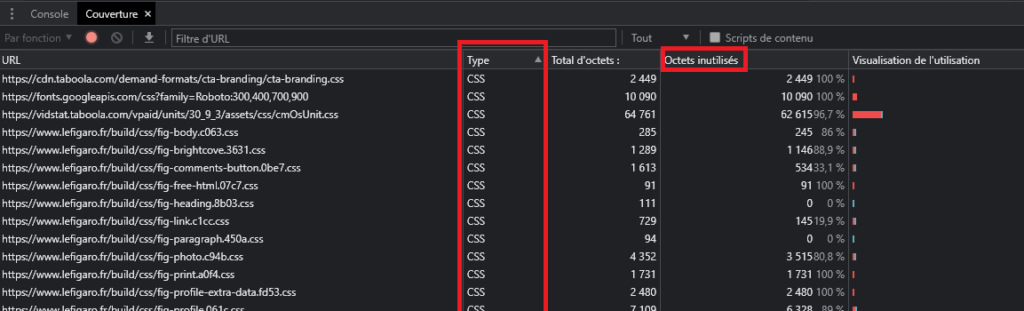
All you need to do is click on a URL to see the unused code within a file — unused code will appear in red, code that is used in blue:

Is that not wonderful? However, if you are not a developer, to avoid any risk I strongly advise you to get help. Eliminating unused CSS or JavaScript without knowing what you are doing could very easily take your site down with it.
A clever approach is to gather all unused CSS code and put it into a separate CSS file to be served last, so that the important styles are taken into account first. This way you can be sure not to destroy everything, while still limiting render-blocking. Speaking of which, let us now look together at how to prioritise the most important CSS (or JS) files for rendering.
Note: WP Rocket has an automatic optimisation feature to address the unused CSS problem, currently in beta (available only for WordPress sites).
Preload CSS / JS / …
Resources used in a CSS or JavaScript file can be fetched later if they are not important for page rendering, such as an analytics script, unused CSS, and pretty much anything else you like.
If you know that a particular resource should be prioritised, use it to fetch it first. Many types of resources can be preloaded, but you should first focus on preloading critical resources (CSS & JS), such as fonts (otherwise your CLS will suffer), images and videos.
Here are different techniques for preloading CSS, JS, and whatever else you need:
Manually:
<link rel=”preload” as=”script” href=”script.js” />
<link rel=”preload” as=”style” href=”style.css” />
<link rel=”preload” as=”image” href=”img.png” />
<link rel=”preload” as=”video” href=”vid.webm” type=”video/webm” />
<link rel=”preload” href=”font.woff2″ as=”font” type=”font/woff2″ crossorigin />
For responsive images, it is also possible to use this code:
<link
rel=”preload”
as=”image”
href=”wolf.jpg”
imagesrcset=”wolf_400px.jpg 400w, wolf_800px.jpg 800w, wolf_1600px.jpg 1600w”
imagesizes=”50vw”
/>
Use JavaScript to load CSS dynamically with LoadCSS.js → // code: loadCSS( “path/to/mystylesheet.css” );
You can use the WP Rocket plugin if you use WordPress (cannot be combined with the “remove unused CSS” method).
Limit slow resource load times
The element defined by LCP is by definition a slow resource, since slow resources are large images, a background image (not a colour or gradient), videos and “block-level elements”.
We will therefore look in this section at how to optimise your images, videos and text.
Optimise and compress images
For most sites, images are the largest visible element when the page has finished loading. Even if this is not your case, it is a crucial speed optimisation for a website, so I invite you to apply this section to yours.
- Compress your images (for example with accessible online, or use the Imagify plugin for WordPress)
- Convert your images to web-friendly formats such as .WebP (Imagify includes conversion of your images to WebP format)
- Use the .svg format where possible
- Resize your images. Do not use images that are too large if there is no benefit. If you upload an image at 3000×3000 but display it at 800×800 in CSS, upload it directly at 800×800
- Use a CDN
- Defer image loading: LazyLoad
Compress text files
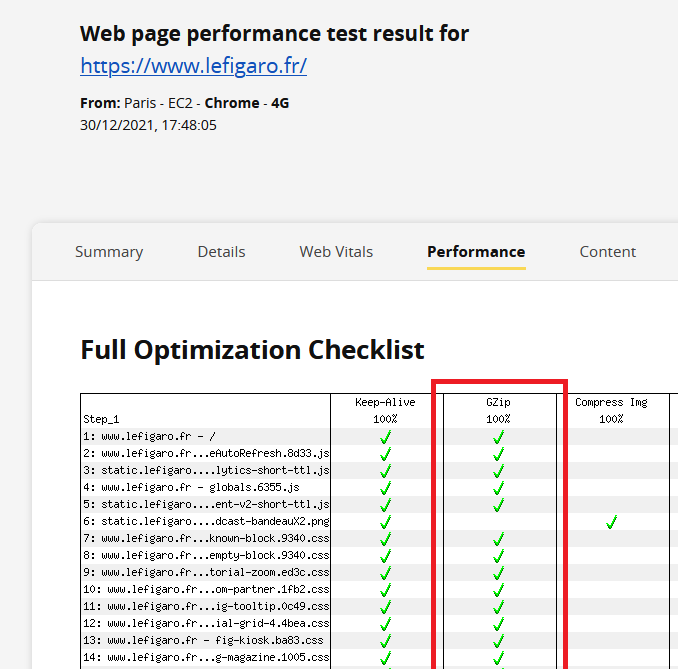
Compression algorithms such as Gzip and Brotli significantly reduce the size of text files (HTML, CSS, JavaScript) during transfer between the server and the browser. Gzip is supported by all browsers and Brotli provides better but less compatible compression results.
Compressing your resources will minimise their delivery size, improving load times and consequently LCP.
First, check whether your server already compresses files automatically (or allows you to configure this fairly easily). As hosting like Kinsta, many CDNs and reverse proxies would do.
You can easily check this using speed testing tools such as webpagetest.org
Consider limiting resources based on network quality
When loading resources that make up the main content of a page (LCP), it is effective to use different resources depending on network quality. This can be done using the Network Information, Device Memory and HardwareConcurrency APIs.
If you have large resources critical to the initial render, you can use different variants of the same resource depending on the user’s connection or device.
For example, you can display an image instead of a video for any connection speed below 4G:
if (navigator.connection && navigator.connection.effectiveType) {
if (navigator.connection.effectiveType === ‘4g’) {
// Load video
} else {
// Load image
}
}
Cache assets
We covered server-side caching earlier as a way to improve TTFB. But we can also mention font caching, CSS, JavaScript, images, files or even Google Analytics for analysing data offline. For this you can use Workbox for example.
Some additional optimisations (bonus)
Still a poor LCP? Here are some additional optimisations that might help:
- Upgrade your server and/or hosting service. Make sure download speeds remain fast even under heavy usage. Indeed, speed optimisation techniques are completely useless if your hosting cannot handle peaks of significant activity.
- Enable server compression and HTTP/2+.
- Remove unused extensions if you use a CMS, or consider disabling then deleting them.
- Set the appropriate Expires, Last-Modified and/or ETag hashes in the HTTP header, so that files are not re-requested.
- Minimise third-party requests and consider moving resources to your main domain to avoid superfluous DNS lookups.
- Minimise the number and size of requested files, especially at the top of your HTML.
- Make sure you only load the necessary web fonts. You can also consider switching to web-safe fonts for optimal performance.
- Minifying your JavaScript and CSS files is good, but you can also concatenate (combine) them.
- Avoid CSS @import statements: they block rendering and load styles in series.
- Avoid Base64 encoding — it increases file sizes and requires additional processing.
- Consider inline critical CSS. Embed the essential CSS stylesheets in a block at the top of the page, then load the other stylesheets asynchronously.
- Use async, deferred or ES JavaScript modules to run scripts later. Run long JavaScript processes in a service worker.
If you have suggestions feel free to add them in the comments! If you have questions, you are welcome to ask them or contact me directly.